
Redesigned Forms Module — Web & Mobile Guide
Overview
The Forms page has a new layout on both the Ontraccr web app and the mobile app (version 5.0.2). Nothing was removed: templates, logs, approvals, assignments and imports all work as before. What changed is where you find them.
Forms still lives under Documents → Forms in the left menu. It now opens on a new Forms landing page instead of going straight to Templates. What you see on the page depends on your roles and permissions.
The biggest change: Templates is now called Workflows. To build or edit a form, click Automate workflows.
Before vs. now
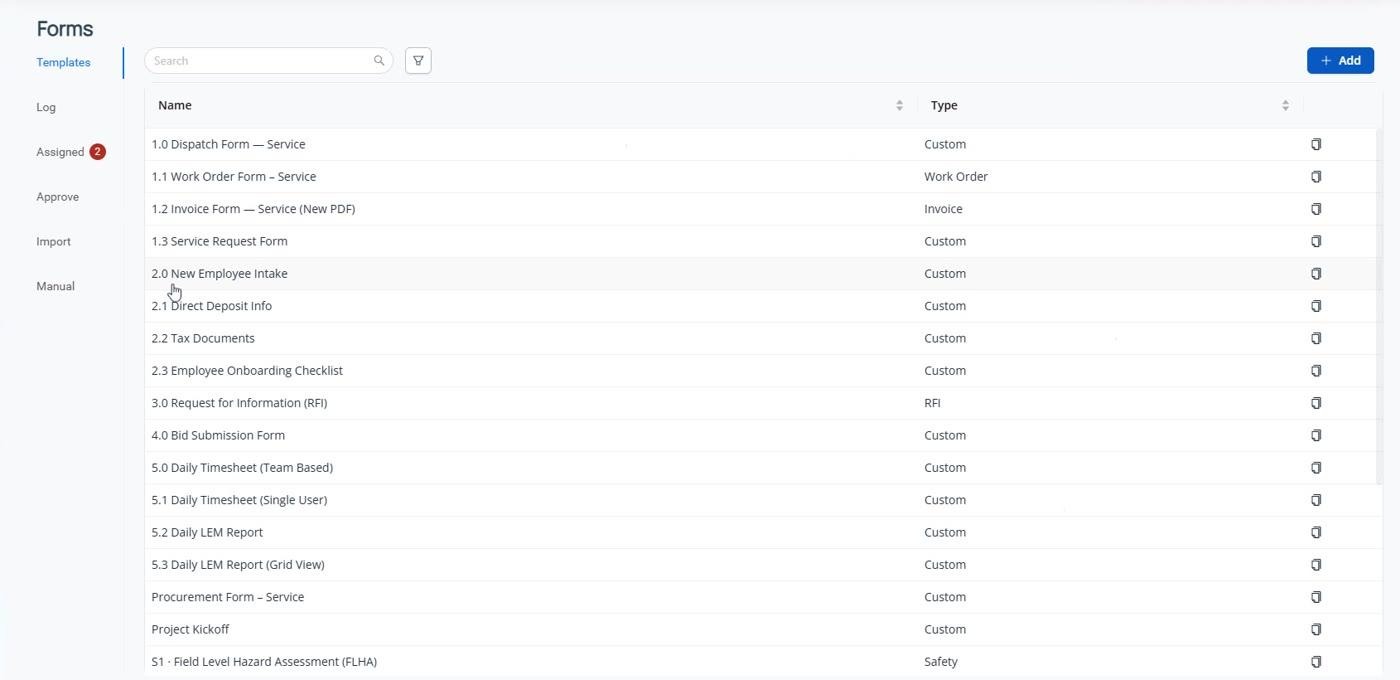
The old Forms page had a left-hand sub-menu: Templates, Log, Assigned, Approve, Import and Manual. Each of those still exists. This table shows where it lives now.
Previous version | Where it is now | Notes |
|---|---|---|
Templates | Automate workflows (top-right button, or the card under More form tools) | Renamed Workflows. Build new forms and edit existing ones here. |
Manual | Start form (top-right button), or the Start a new form section on the landing page | Same Favorite, Project and Global lists as before |
Approve | Approve shortcut card | Shows a count plus how many were added this week |
Assigned | Assigned shortcut card | Forms assigned to you. Drafts of assigned forms still show here. |
(new) | Drafts shortcut card | Drafts now have their own page, no longer mixed in with Assigned |
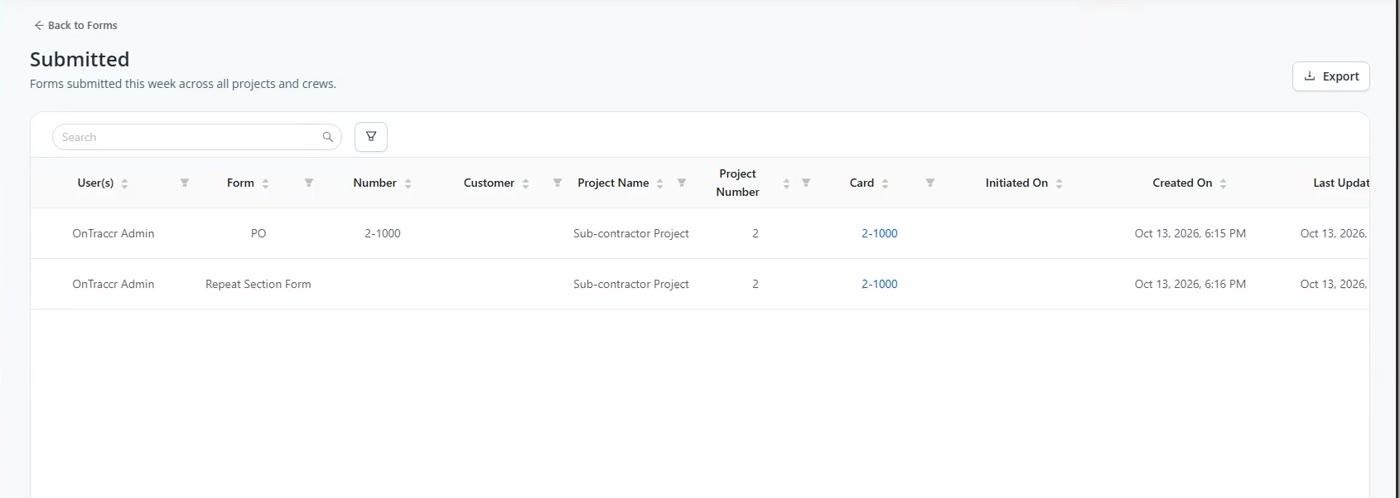
(new) | Submitted shortcut card | Forms submitted this week across all projects and crews |
Log | Log shortcut card | Master log. Defaults to the current pay period, with all-time data still available. |
Import | Bulk import forms card under More form tools | Same import as before |
Tour of the landing page
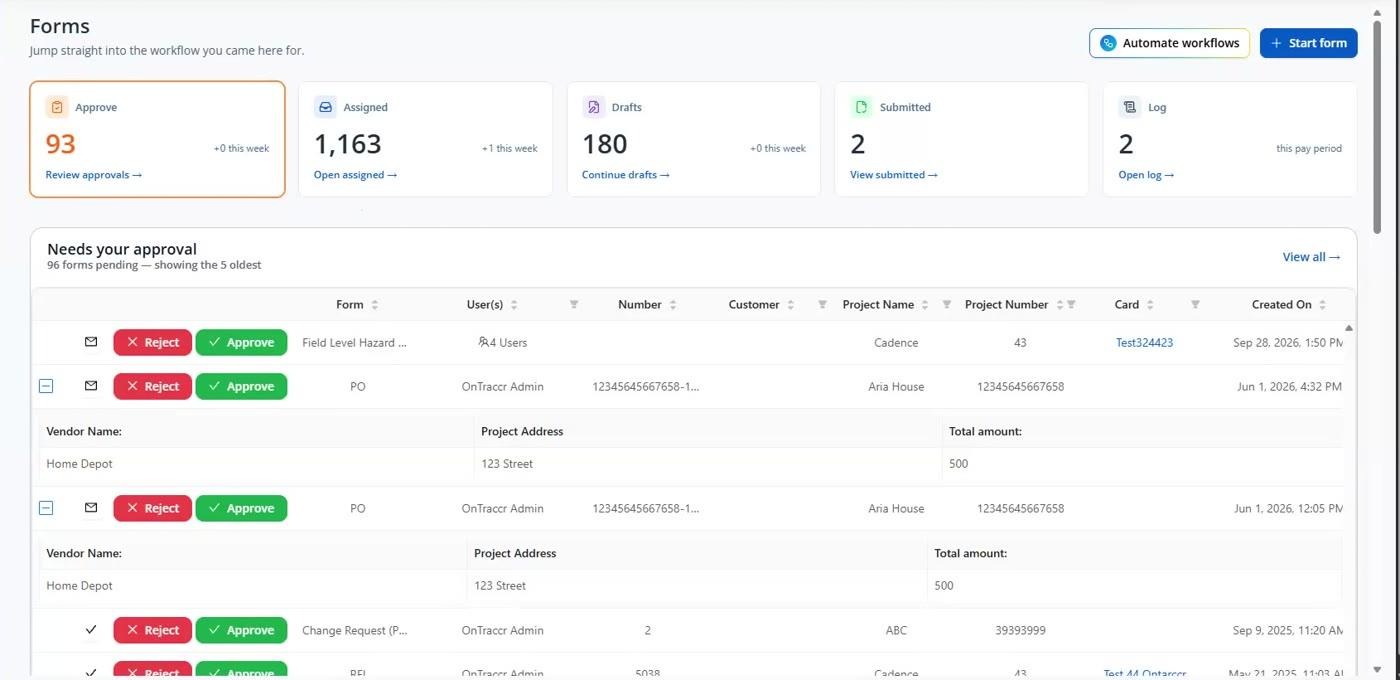
The landing page reads top to bottom: two action buttons, five shortcut cards, then sections showing a preview of each list.
Top-right buttons
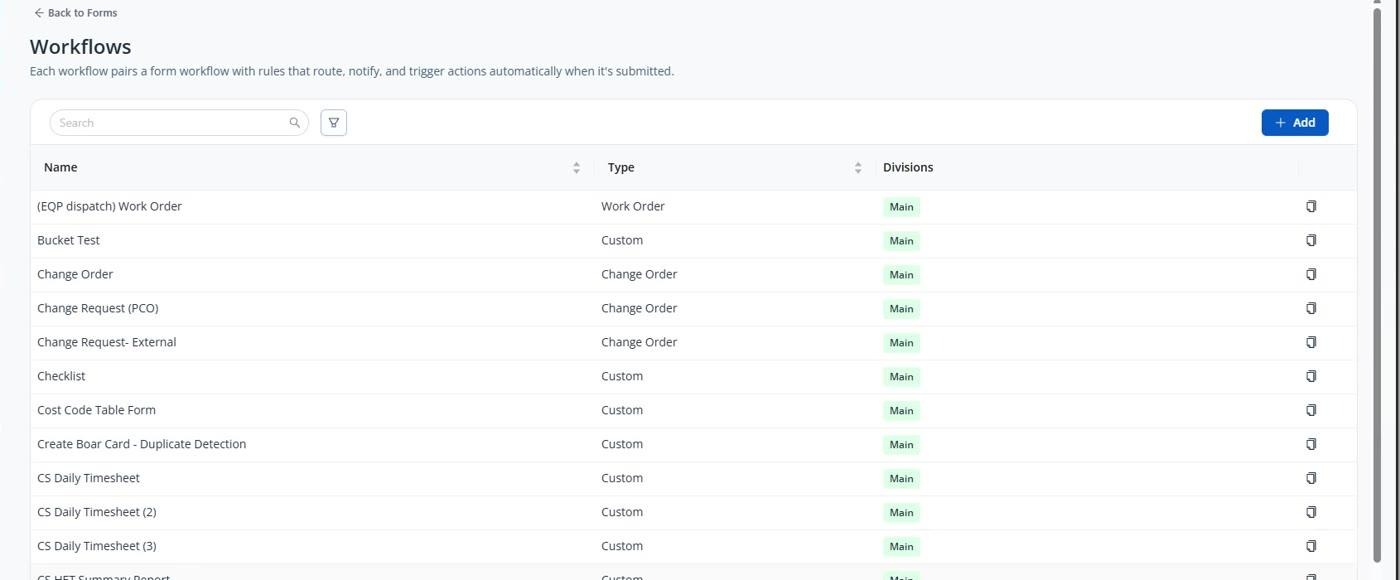
- Automate workflows: opens the Workflows page (previously Templates), where you build forms and set up automated workflows for them.
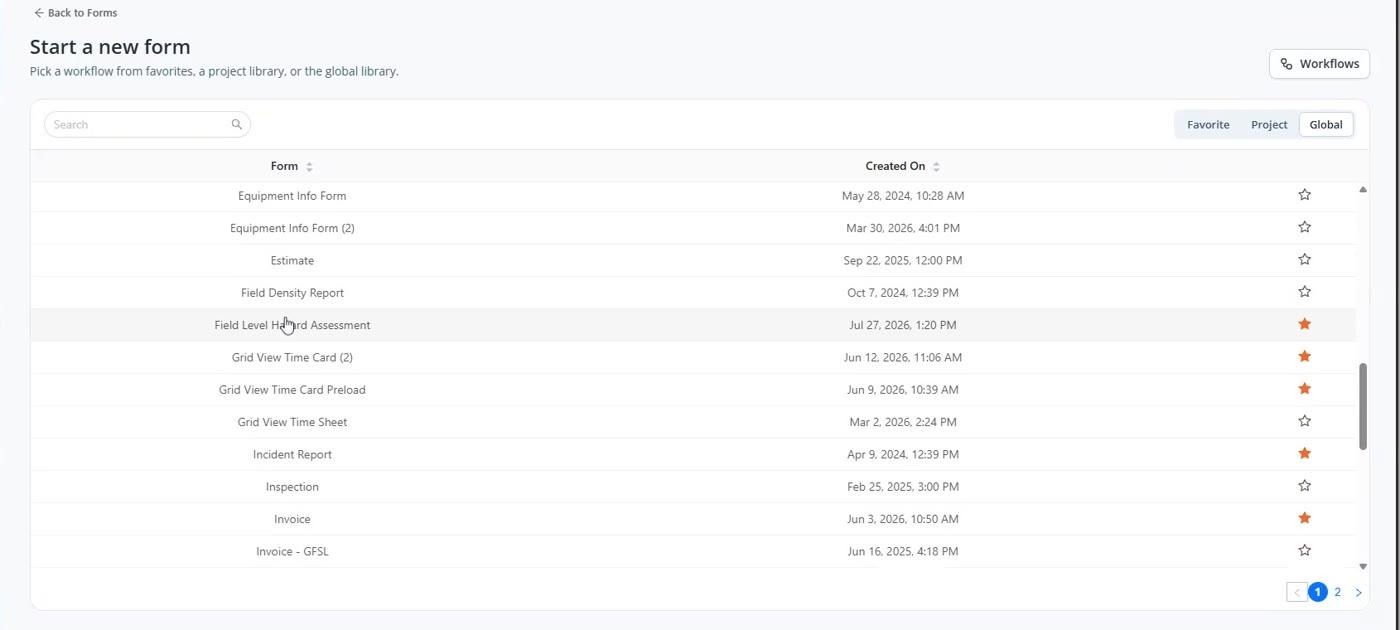
- Start form: opens the Start a new form page (previously Manual), with your Favorite, Project and Global forms.
Shortcut cards
Each card shows a live count and opens the full page in one click.
Card | Count shown | Opens |
|---|---|---|
Approve | Forms waiting on you, plus how many were added this week | Your approvals page |
Assigned | Forms assigned to you, plus how many were added this week | The assigned log, with Assigned to me and Assigned to others filters |
Drafts | Your in-progress forms | The Drafts page |
Submitted | Forms submitted this week | All submissions this week across every project and crew. You no longer need to build this filter yourself. |
Log | Forms this pay period | The master log (if you have access). Change the date range to see all-time data. |
Needs your approval
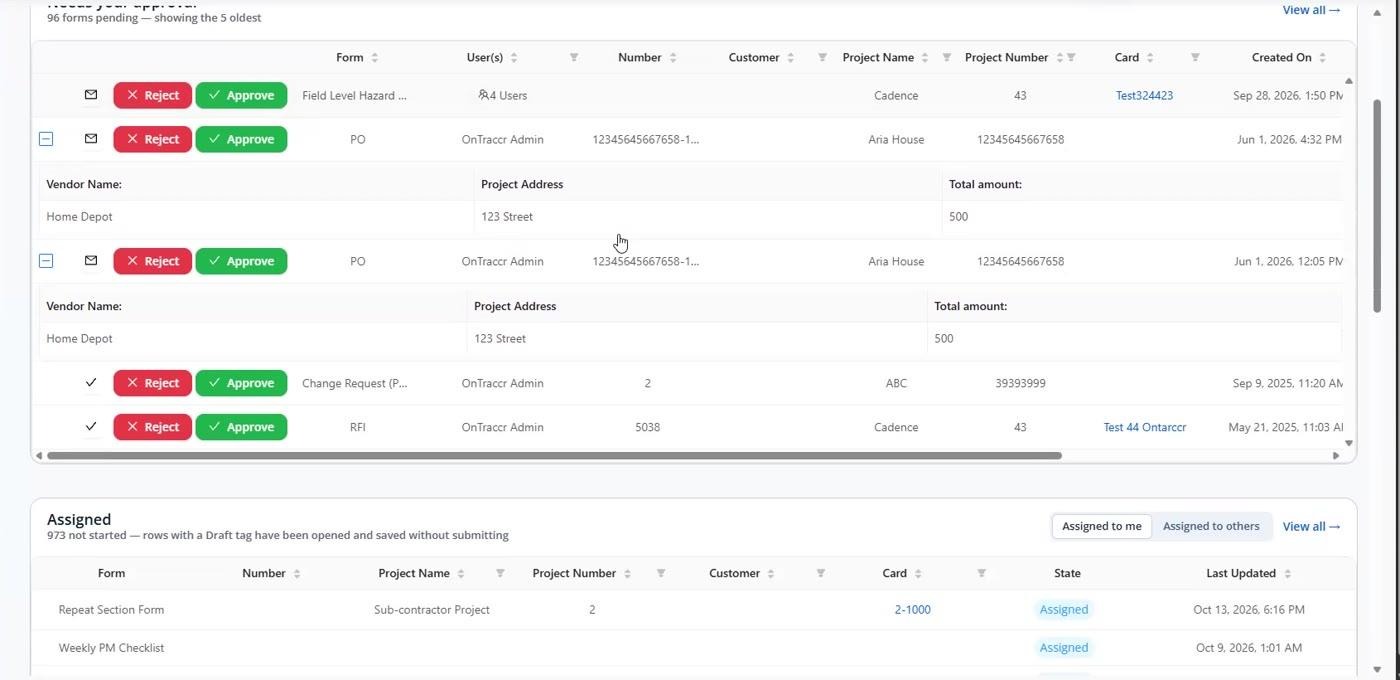
Shows the 5 oldest forms waiting for your approval, with Approve and Reject buttons on each row. Click View all for the full list.
Assigned
Shows up to 5 forms assigned to you. Toggle between Assigned to me and Assigned to others. Rows tagged Draft were opened and saved but not yet submitted.
Drafts
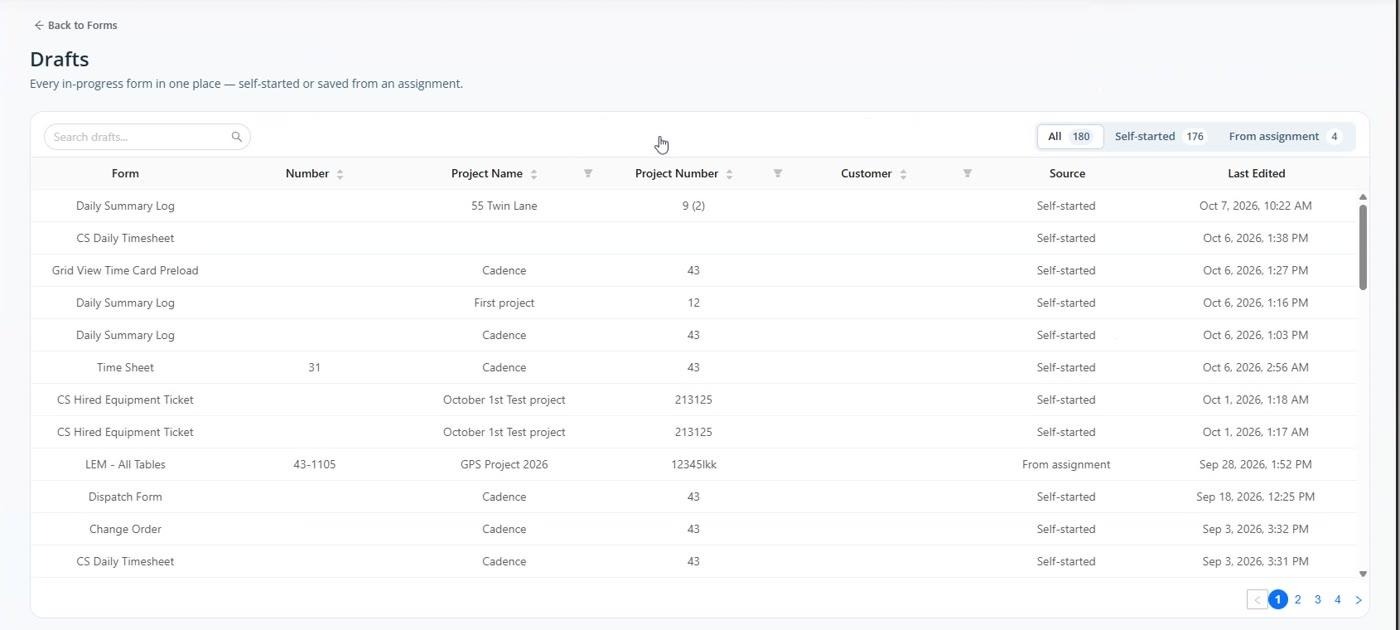
Shows your in-progress forms. Filter by:
- All: every draft
- Self-started: forms you started yourself that weren't assigned to you
- From assignment: drafts of forms assigned to you. Use this filter to see which assigned forms you still need to submit.

Start a new form
Your favourite forms are listed right on the landing page. Click one to start it. Switch to Project or Global to see other forms, or type in Search templates (for example, "PO") to filter the list as you type.

Form log
Shows your most recent submissions across every project this week. Click View all to open the full form log, which works the same as before.
More form tools
- Automate workflows: same as the top-right button. Opens Workflows (previously Templates).
- Bulk import forms: brings in historical forms from .xlsx or .xls files (previously Import).

How to do common tasks
Every task starts at Documents → Forms.
Approve or reject forms
- Approve forms right from the Needs your approval section using the Approve or Reject button on each row.
- To see every form waiting on you, click the Approve card or View all.
Find forms assigned to you
- Click the Assigned card.
- Use Assigned to me or Assigned to others to switch lists.
Continue a draft
- Click the Drafts card, or scroll to the Drafts section.
- Filter by Self-started or From assignment, or search for the form.
- Click the draft to pick up where you left off.
Start a new form
- Scroll to Start a new form on the landing page and click a favourite, or
- Click Start form at the top right.
- Choose Favorite, Project or Global, or search by name, and click the form to start it.
- Star a form to add it to your favourites so it appears on the landing page.
Build or edit a form template
- Click Automate workflows at the top right of the Forms page, or the card under More form tools. If you have permission, the Workflows button on the Start a new form page also works.
- On the Workflows page (previously Templates), click + Add to build a new form, or click an existing one to edit it.
See this week's submissions
- Click the Submitted card.
- Search, filter or export the list as needed.
Open the full form log
- Click the Log card, or View all on the Form log section.
- The log defaults to the current pay period. Change the date range to see older submissions.
Import historical forms
- Scroll to More form tools at the bottom of the landing page.
- Click Bulk import forms and upload your .xlsx or .xls file.
Mobile app (version 5.02)
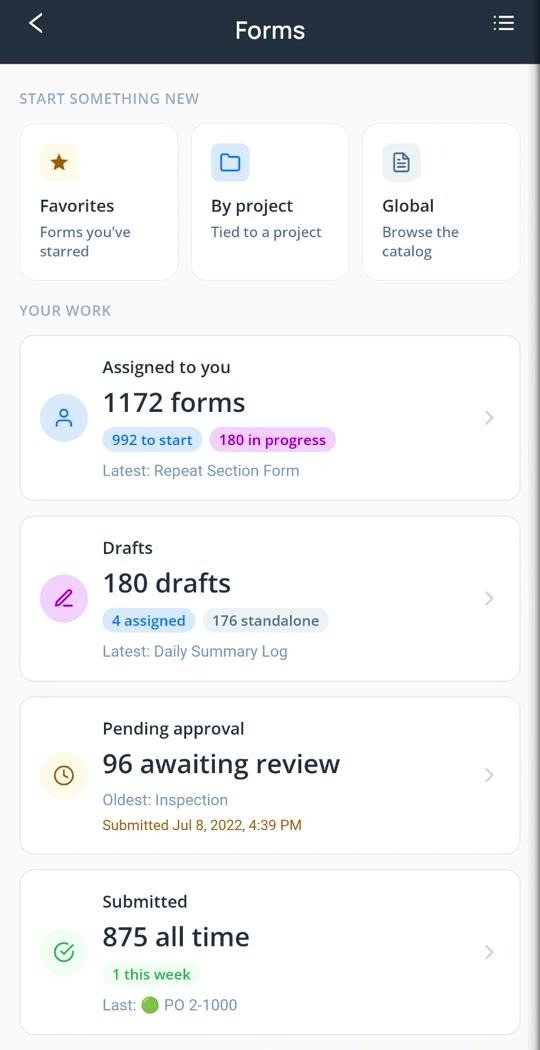
On mobile, tapping Forms from Apps or the Action Center now opens a new Forms landing page. The previous Forms page is still there, redesigned, and works the same as before.
Start something new
Three tiles at the top are shortcuts for starting a form:
- Favorites: forms you've starred
- By project: forms tied to a project you have access to
- Global: the global form catalog you have access to
Your work
Four cards show the forms that need your attention. Tap a card to open the full list.
Card | What it shows |
|---|---|
Assigned to you | Forms assigned to you through workflows, split into to start and in progress, plus the latest one |
Drafts | Your in-progress forms, split into assigned and standalone (self-started), plus the latest one |
Pending approval | Forms awaiting your review, with the oldest one and when it was submitted |
Submitted | Submissions all time, with how many came in this week and the most recent one |
Choose which page opens by default
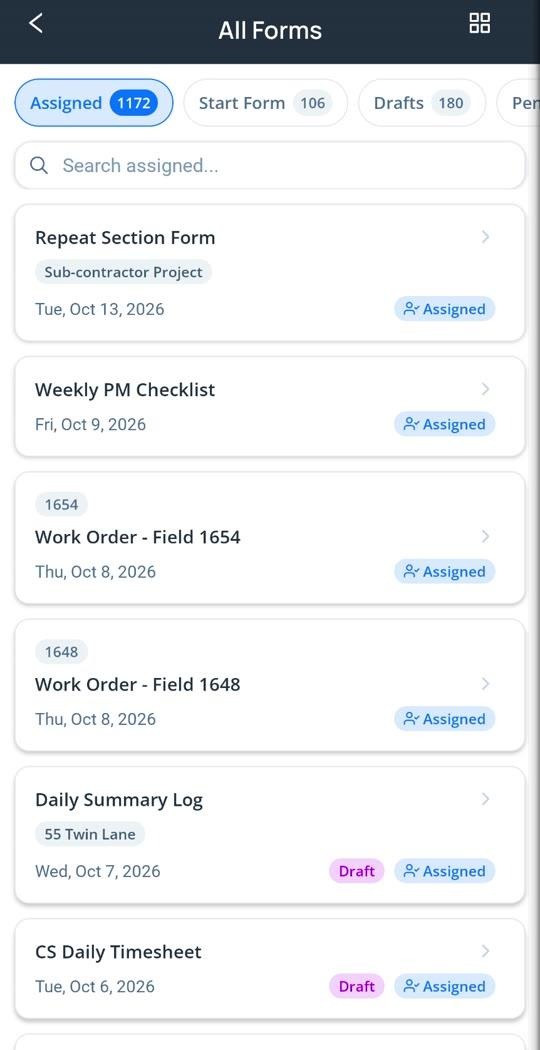
Tap the icon at the top right to switch between the two views:
- On the landing page, tap the list icon to go to the redesigned All Forms page.
- On All Forms, tap the tile (grid) icon to go back to the landing page.
- Whichever page you save becomes your default. It opens every time you tap Forms from Apps or the Action Center.
The redesigned All Forms page
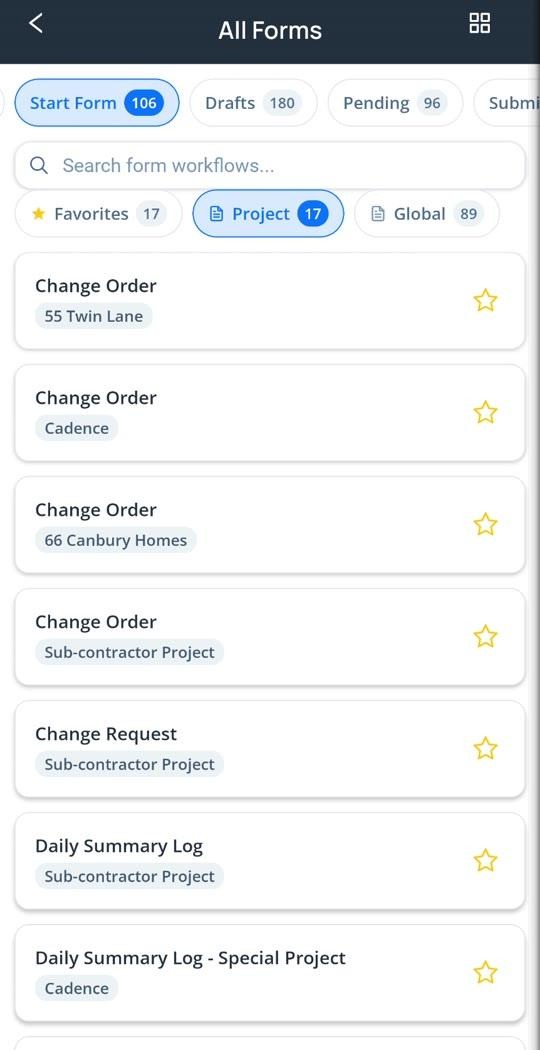
All Forms keeps everything from the previous mobile Forms page, with tabs across the top: Assigned, Start Form, Drafts, Pending and Submitted. Each tab shows a count and has its own search. Under Start Form, filter by Favorites, Project or Global, and tap the star to favourite a form.
FAQ
Where do I design or edit my forms now? In Automate workflows at the top right of the Forms page. Templates was renamed Workflows. Nothing about how you build forms has changed.
Did any features get removed? No. Everything from the previous Forms page is still available. Some items moved, and Drafts, Submitted and the landing page are new.
Why don't I see every card or section? What appears depends on your roles and permissions. For example, the full Log shows only if you have access to it.
Where did the Manual tab go? Click Start form at the top right, or use the Start a new form section on the landing page.
Are drafts of assigned forms still in Assigned? Yes. They also appear in Drafts under the From assignment filter.
What about the mobile app? It was updated too, in version 5.02. See the Mobile app section above. You can choose whether Forms opens on the new landing page or the redesigned All Forms page.